Omarchy After The Hype And How To Successfully Migrate from Windows
So, you probably were blasted with all sorts of opinions and information regarding Omarchy in the past couple of months, and for a good reason. But you might be wondering if there is anything behind the hype and what’s the best way to migrate. This article will answer both points.
I have been using Windows for more than 30 years! Unfortunately, like many others, I have been getting increasingly frustrated with what the OS has become. Questionable quality, sluggish UI, sketchy design, and everything in between. I do not like Mac so my only option was Linux but I was hesitant to fully move there because I did not want to lose a lot of hours figuring out what to install and what works best. And then came Omarchy.
We clicked instantly. I basically needed a couple of hours to set up my environment and was productive the same day. I did not expect that. Yes, it is quite different from Windows but it is super fast and very logical so any technical person should feel at home.
But what is Omarchy?
The best way to think about Omarchy is that it is an opinionated mod of Arch Linux. Arch Linux is a lightweight, independent Linux distribution built around simplicity, minimalism, and user control. It started in 2002 (Judd Vinet) and is fully community-run. Other distros built on it include Manjaro, EndeavourOS, CachyOS, and SteamOS on the Steam Deck. Key features of Arch are:
- Rolling release. There are no version numbers like “Ubuntu 24.04”. You install once and keep updating, so you always have the latest kernel, libraries, and apps.
- Minimal by default. A plain Arch install gives you only a base system and a shell. You choose the desktop, display manager, network tools, and everything else. Omarchy makes those choices for you, with Hyprland, its themes and keybindings, and a curated set of apps.
- Pacman is Arch’s fast, simple package manager for the official repositories.
- AUR (Arch User Repository) is a huge set of community build scripts (PKGBUILDs) for software that isn’t in the official repos and it is not vetted. You install from it with helpers like yay or paru.
- The Arch Wiki is widely seen as the best Linux documentation anywhere, and it’s useful even if you run a different distro.
Omarchy turns Arch Linux + Hyprland (dynamic tiling Wayland compositor) from a week of configuration into an opinionated, ready-to-use desktop enabling you to hit the ground running almost immediately. Whether what’s under the hood of Omarchy will stay the same is another story, but I am sure that the experience will only keep getting better no matter what.
How Does It Feel?
As I mentioned in my prelude, I hit the ground running almost immediately. I haven’t been used to an environment where the mouse is not needed at all but everything clicked very fast. The only problems I had were related to custom software for signing documents. Let me highlight the aspects of Omarchy that I like best.
Being opinionated is cool
Omarchy is delivered locked and loaded with pretty much all tools you will need for dev work. Not having to choose every single detail feels like a relief to me, especially if you are migrating from another operating system. And yes, I get that the default setup might not be the perfect one for many people; luckily, customizing your experience is easy.
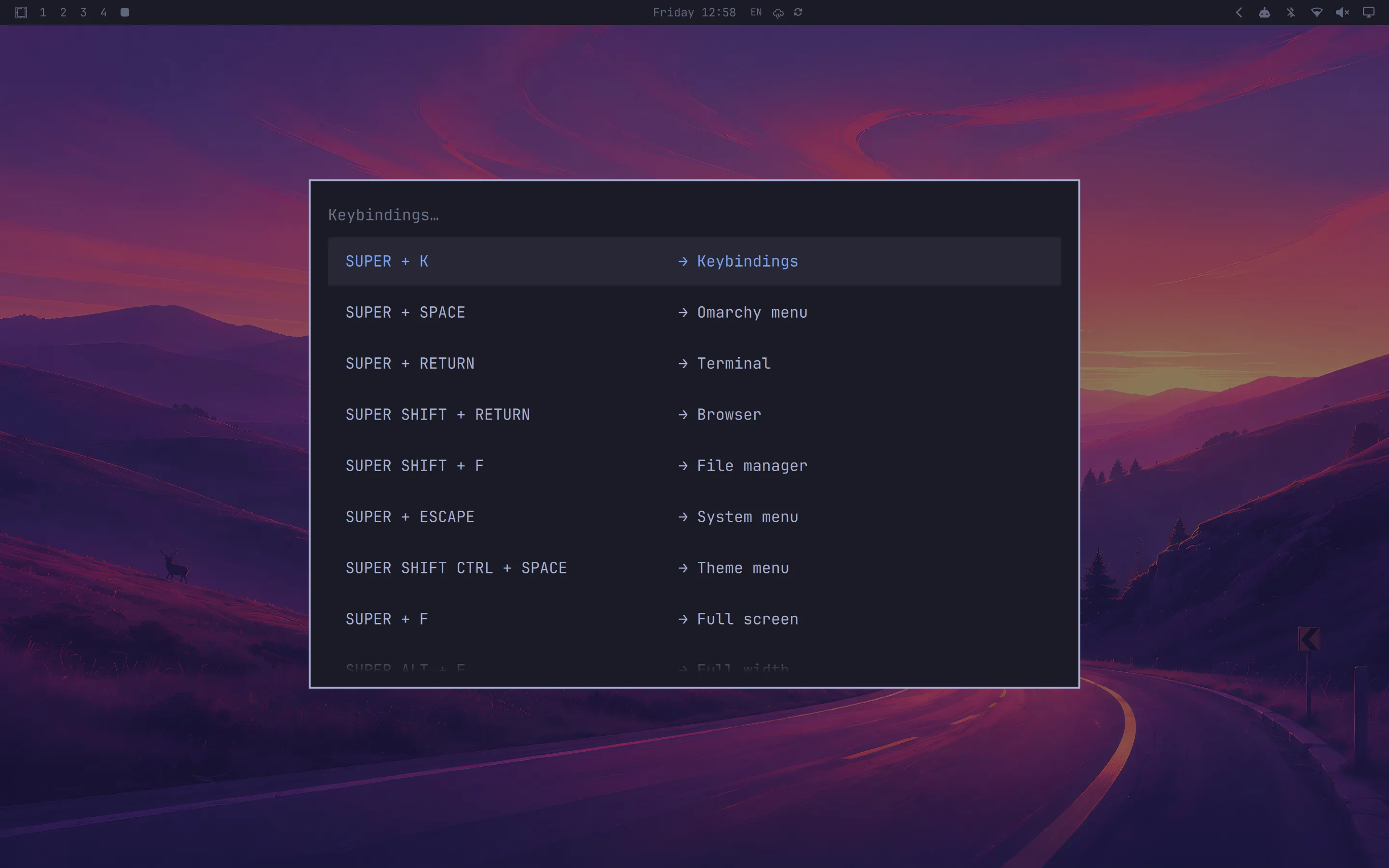
Keybindings for everything
Once you get used to driving everything from the keyboard, there is no turning back. All bindings are very logical but you have the option to change them. I have always tried to use as many shortcuts as possible but Omarchy just pushes you to go all in and for me that worked great.
Embracing AI
This is a hot topic for sure but I do not see the downside of being able to use AI to mend your OS. Omarchy ships with a couple of skills that tell AI how the OS is put together. In turn, this makes it very easy to resolve issues or make Omarchy your own. In addition to mending your OS with the help of AI, the whole core team is heavily invested in using AI to build Omarchy itself.
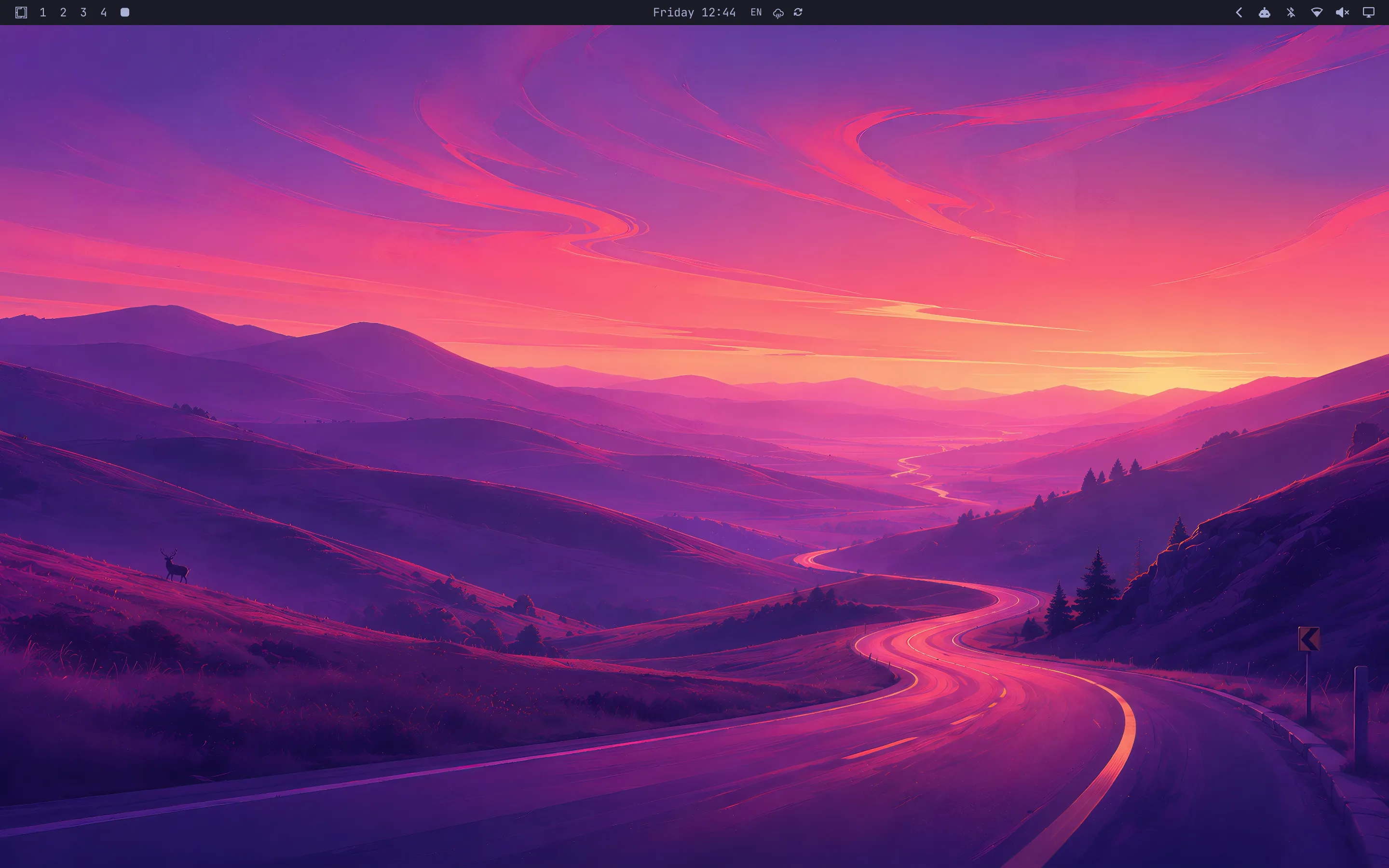
Great design is part of the sauce
It is difficult and sometimes inefficient to create beautiful things but they are worth it 100%. Many new things are just dull, unexciting, and many times just boring. Omarchy brings back a passion to create useful things that also look great and can inspire others.
Performance is amazing
UI is very slick but at the same time super quick. As compared to Windows, Omarchy is pure bliss. You can find hundreds or even thousands of posts online of people reviving old hardware with the help of Omarchy.
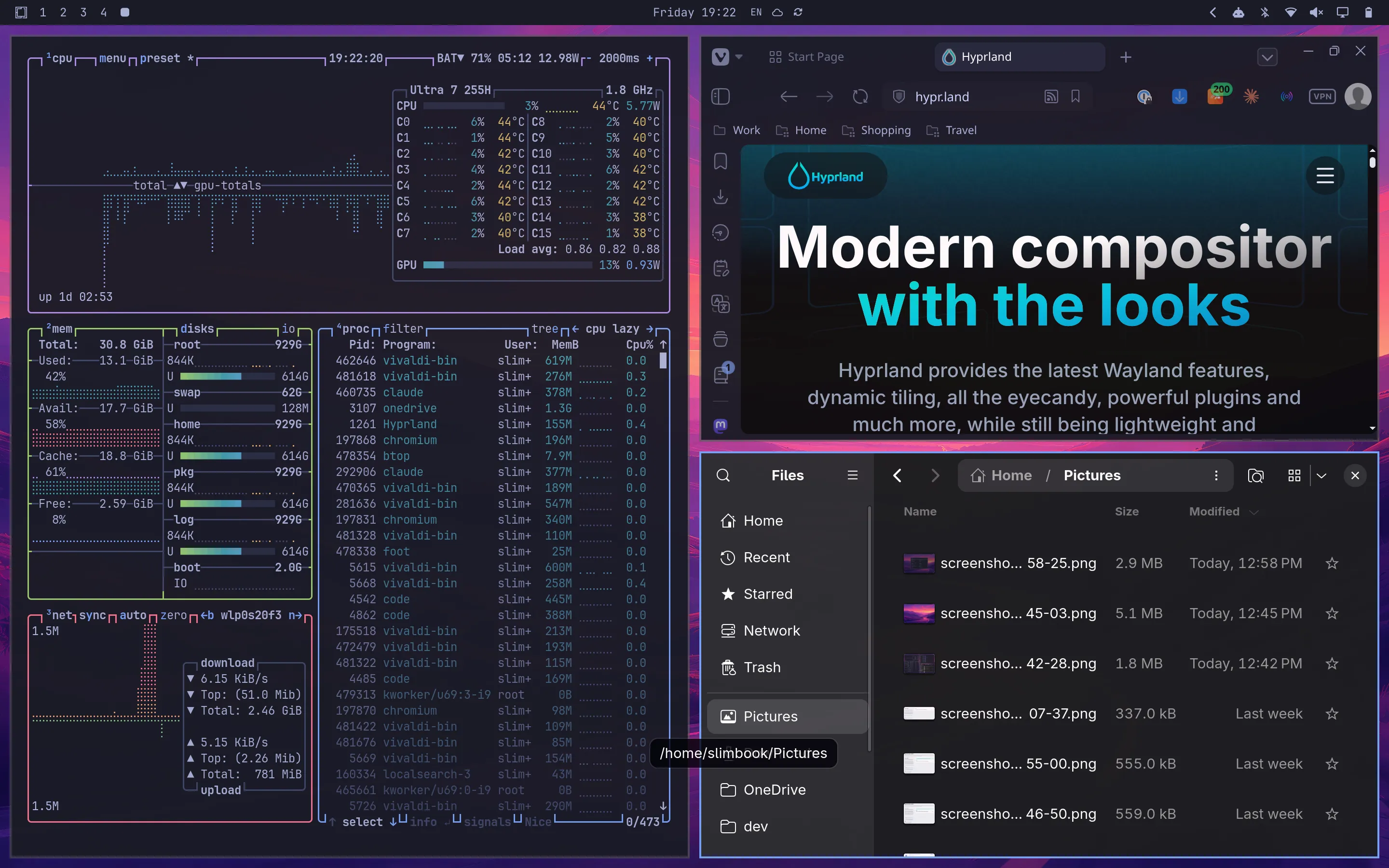
Auto-tiling with Hyprland saves a lot of keystrokes
Scott Hanselman reminds us that “there are a finite number of keystrokes left in your hands before you die.” Auto-tiling spends far fewer of them: windows arrange themselves as you open them, with no dragging or resizing. Looking back, I’m not sure managing windows by hand ever made sense.
Hyprland is definitely worth a try, and so is reading Hanselman’s original blog post (opens in a new tab).
Excitement for Linux is back
I am not sure how to properly explain it but the work on Omarchy has been super exciting. It reinvigorated the scene in a big way and many people are trying Linux for the first time because of Omarchy. That is a win for everyone.
Limitations
While being great, there are certain limitations of Linux that become apparent quite quickly, so have them in mind. Linux has been lacking premium audio and video software. Yes, you do have Kdenlive and DaVinci Resolve, which are quite capable, but many of the major players, like Camtasia, Ableton and Logic Pro, have no Linux version.
Another area where Linux was historically lagging is gaming. I haven’t been gaming for many years so this is of no concern to me but for many people it is. The good news is that the situation has been improving dramatically. Proton, Valve’s compatibility layer that runs Windows games on Linux by translating DirectX calls to Vulkan, is a huge step toward game parity. Most of the Steam catalogue now plays, often with performance close to Windows and sometimes better.
Valve’s own hardware runs Linux (Steam Deck and SteamOS), so game developers now test against Proton. SteamOS has spread to other handhelds, and Valve’s Steam Machine moves it into the living room. Every one of those devices is a Linux gaming machine. I think we can say with a fair degree of certainty that this limitation will be disappearing soon.
The Future of Omarchy Looks Promising
There has been a lot of hype and backlash regarding Omarchy. No matter in which camp you are on, Omarchy has generated an enormous amount of interest in Linux that hasn’t been seen recently, if ever. DHH announced the inception of the Omacom Foundation, which has gathered over $23 million in pledges since. Things are serious. With the motto of “We can fix everything” and being backed by prominent figures like Michael Dell, Tobi Lütke, DHH, and others, Omarchy is here to stay and the future of Linux is only getting brighter.
Migrating to Omarchy?
Now that we have covered the basics, let’s get our hands dirty and migrate to Omarchy. For the ones that are still not ready to commit, I have a roundabout way outlined towards the end of the article which might suit you better.
I am not going to dwell much on the way you can experience Omarchy. Regular boot, dual boot, a native install on Apple Silicon Macs (since Omarchy 4.5), and a VM on Mac or Windows are all possible and documented on https://omarchy.org/ (opens in a new tab). Pick what you are most comfortable with and try it. I’ll share the ways I’d make the jump, including the one I used, in Step 3.
For starters, I would definitely watch the introductory video of Omarchy by DHH where he explains how everything works.
What I would like to emphasise in this blog post is the one area where people get stuck most often and where it hurts the most if they are not prepared. I am talking about the apps!
Windows to Omarchy App Map
One of the main things that decides whether your migration succeeds isn’t the desktop — it’s whether every app you depend on has a home on the other side. Migrations fail because of the one app you forgot about. The template I am going to put forward will significantly reduce your risk and hopefully prepare you for smoother sailing toward the bliss of Omarchy.
What I did before my migration was to build an interactive map of all of the apps that I had on my machine and see if the same app is available on Linux. If not, the map lists possible replacements. Doing that before you actually migrate will definitely increase the likelihood of you sticking to Omarchy and reduce any anxiety that you might have.
To better visualize what I am talking about, check the map that I have created for my personal migration. The full interactive map is available for you to explore.
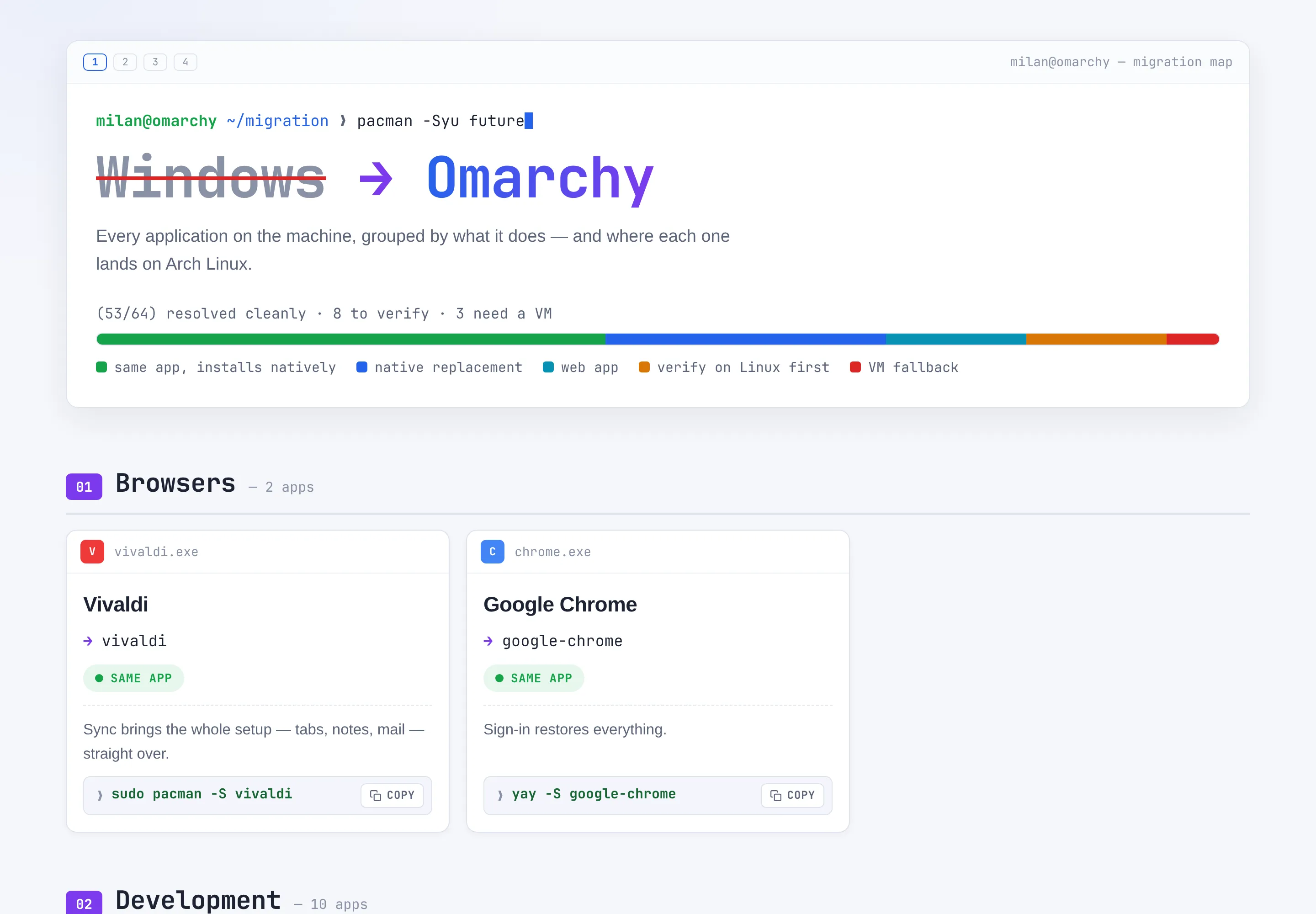
Every app on your machine, sorted by what it does, with one of five honest answers next to it:
- Same app — the identical application has a native Linux build
- Native replacement — a Linux-native equivalent, or something Omarchy ships
- Web app — the browser version fully covers it
- Verify first — a Linux path exists but must be tested
- VM fallback — no Linux path; needs a Windows VM
The numbers from my machine:
| Apps inventoried | 64 |
| Resolve cleanly (same app, replacement, web) | 53 |
| Test on Omarchy first | 8 |
| Need a Windows VM | 3 |
Here are the steps to replicate that with the help of AI.
Step 1: Inventory everything
No single source knows all your apps. The registry misses Store apps, winget misses portable apps, and nothing catches the tool you pinned to the taskbar in 2021. Pull from six sources and let the AI merge them.
Save this as inventory.ps1, then run powershell -ExecutionPolicy Bypass -File inventory.ps1. It collects everything into one folder and zips it.
# inventory.ps1 — collects a complete app inventory from 6 sources$out = "C:\Temp\app-inventory"New-Item -ItemType Directory -Path $out -Force | Out-Null
# 1. Traditionally installed programs (registry: 64-bit, 32-bit, per-user)Get-ItemProperty `  "HKLM:\Software\Microsoft\Windows\CurrentVersion\Uninstall\*",  "HKLM:\Software\WOW6432Node\Microsoft\Windows\CurrentVersion\Uninstall\*",  "HKCU:\Software\Microsoft\Windows\CurrentVersion\Uninstall\*" -ErrorAction SilentlyContinue |  Where-Object DisplayName |  Select-Object DisplayName, DisplayVersion, Publisher |  Sort-Object DisplayName -Unique |  Export-Csv "$out\installed-programs.csv" -NoTypeInformation -Encoding UTF8
# 2. Everything winget knows (catches what the registry misses, and vice versa)winget list --accept-source-agreements > "$out\winget-list.txt"
# 3. Microsoft Store / UWP appsGet-AppxPackage | Where-Object { -not $_.IsFramework } |  Select-Object Name, Version | Sort-Object Name |  Export-Csv "$out\store-apps.csv" -NoTypeInformation -Encoding UTF8
# 4. Startup items (reveals background tools you rely on but forgot)Get-CimInstance Win32_StartupCommand |  Select-Object Name, Command, Location |  Export-Csv "$out\startup-items.csv" -NoTypeInformation -Encoding UTF8
# 5. Start menu shortcuts (catches portable apps pinned manually)Get-ChildItem `  "$env:ProgramData\Microsoft\Windows\Start Menu\Programs",  "$env:APPDATA\Microsoft\Windows\Start Menu\Programs" `  -Recurse -Filter *.lnk -ErrorAction SilentlyContinue |  Select-Object -ExpandProperty BaseName | Sort-Object -Unique |  Out-File "$out\startmenu-apps.txt" -Encoding UTF8
# 6. Taskbar pins (your actual daily drivers)Get-ChildItem "$env:APPDATA\Microsoft\Internet Explorer\Quick Launch\User Pinned\TaskBar" `  -Filter *.lnk -ErrorAction SilentlyContinue |  Select-Object -ExpandProperty BaseName |  Out-File "$out\taskbar-pins.txt" -Encoding UTF8
# Zip it for easy upload to your AICompress-Archive -Path "$out\*" -DestinationPath "C:\Temp\app-inventory.zip" -ForceWrite-Host "`nDone. Upload C:\Temp\app-inventory.zip (or the 6 files in $out) to your AI." -ForegroundColor GreenStep 2: Turn the inventory into a map
Upload the six files (or the zip) to your AI assistant and drop the following prompt.
I'm migrating from Windows to Omarchy (Arch Linux + Hyprland, Wayland-only, pacman + yay available). Attached are 6 exports of everything on my machine (registry programs, winget list, Store apps, startup items, Start menu, taskbar pins).
Do all of the following without asking me questions, making reasonable assumptions where needed:
1. Merge and deduplicate into one list of real applications. Silently drop Windows components, drivers, runtimes and OEM bloat, but include a short appendix listing what you dropped.2. Classify every app with exactly one status: same app (native Linux version — exact pacman/AUR package), native replacement (name it; if Omarchy covers it out of the box — launcher, screenshots, clipboard, terminal, tiling — say "built into Omarchy"), web app, verify first (must be tested pre-wipe — say what to test, and flag Wayland-specific risks like screen sharing or global hotkeys), or VM fallback (Windows-only). Search the web to verify anything you're unsure about — especially niche, regional, or hardware-tied software — and confirm AUR package names exist.3. Group by purpose, isolating anything touching government portals, banking, e-signatures, tax or fiscal hardware into a clearly-marked ⚠ critical section at the end.4. Deliver four files: (a) a markdown checklist with all apps, statuses, notes, and install commands, plus summary counts; (b) a self-contained single-file interactive HTML presentation — light theme, large projector-friendly fonts, category sections, status badges, cards with notes and install commands visible by default (no click-to-expand), a copy-to-clipboard button next to every command, a status-share progress bar up top, and a generated "day one" section at the bottom with one pacman -S line and one yay -S line covering every package, generated from one editable JS data array, fully offline with no CDN; (c) a two-line install script: one pacman -S for repo packages, one yay -S for AUR packages; (d) a ~/.config/hypr/ autostart snippet (exec-once lines) recreating my Windows startup items that still make sense on Linux.5. End with a pre-wipe checklist: what to test on Omarchy before wiping Windows, what to back up (including wsl --export for WSL distros), and whether I need a Windows VM (Omarchy's built-in `omarchy windows vm` for most apps; KVM/QEMU + virt-manager with USB passthrough only if smart cards or fiscal devices are involved).
Review the output, request tweaks, done.
Step 3: Making the jump
With the map in hand, you know what is waiting for you on the other side. The last step is getting there, and there is more than one way to do it. Here are the three I would consider, starting with the one I recommend.
1. A new laptop, in parallel (my recommendation). If you are due for new hardware anyway, this is the way to go, and it is exactly how I did it. Install Omarchy on the new machine, install the apps from your map, and keep the old Windows laptop on the desk next to it. Move one workflow at a time, and whenever something is missing, the old machine is right there. There is no deadline and no pressure. You will know you are done when you notice you haven’t opened the Windows laptop in a week. For me, that happened a lot faster than I expected.
2. Dual boot, side by side. No new laptop? Keep Windows and Omarchy on the same machine and pick which one to start when you turn it on. The simplest and safest setup is Omarchy on its own drive, so the two systems never share a disk. The Omarchy manual (opens in a new tab) covers the options. Start every day in Omarchy and reboot into Windows only for the apps marked “verify first” or “VM fallback”, until you have a Linux answer for them. If your Windows drive uses BitLocker, write down the recovery key before you touch anything, because changes to the boot setup can trigger a recovery prompt.
3. Get your feet wet with WSL first. If Linux still feels scary, don’t jump yet. Install Ubuntu in WSL on your current Windows machine and move your development work there: terminal, git, editors, runtimes and build tools. You learn the shell, the package manager and the Linux way of doing things while everything else stays familiar. Once that feels natural, make the full jump to Omarchy with one of the options above. WSL is compatible with most if not all IDEs like Visual Studio Code, so moving your dev workflows to WSL is very easy. Keep in mind that WSL only gives you the Linux command line, not the Omarchy desktop, which needs a real install, so treat it as training wheels rather than a preview.
A safety net for the Windows-only apps. Whichever path you take, a few apps may never make it across. For those, Omarchy has a Windows VM built in. Run omarchy windows vm install (or pick Windows under Install in the Omarchy menu), choose how much RAM, CPU and disk to give it, and Omarchy downloads and installs Windows 11 for you. After that, Windows shows up in the app launcher and opens in its own window, with the clipboard, sound and a shared ~/Windows folder for moving files between the two systems. Close the window and the VM shuts down. It won’t make Windows apps feel native, but for the one app you need once a month, you never have to reboot into Windows again.
Whichever path you pick, go through this list before you finally wipe Windows:
- Install Omarchy on a spare drive or an external SSD (if it isn’t already on your new laptop or dual boot) and test the “verify first” list: Wi-Fi, printer/scanner, smart-card readers, USB dongles, external monitors. Hyprland + your GPU is part of what you’re testing.
- Sign into your critical portals (bank, government, tax) if you use e-signature software. This is the #1 migration killer and it’s country-specific — smart-card middleware usually needs
pcsclite+ccidand the vendor’s Linux client. Test a real signature, not just a login. - Wayland gotchas to test, not assume: screen sharing in your meeting apps, any remote-control/support tools, global push-to-talk hotkeys, and apps that misbehave without XWayland.
- Back up: browser profiles (or confirm sync), SSH keys and dotfiles, WSL homes (
wsl --export <distro> file.tar), license keys, and anything inDocuments/Desktopnot in cloud sync. - If anything landed in “VM fallback”, set up the Omarchy Windows VM and test those apps in it before wiping — not after, when you suddenly need to file a tax declaration. The built-in VM doesn’t pass USB devices through, so if an app needs a smart-card reader or a fiscal device, build a VM with
virt-manager(sudo pacman -S virt-manager qemu-full) and USB passthrough instead. - Recreate your autostart in Hyprland’s config (
exec-oncelines) so day one feels like home, and keep the inventory zip — six months in, “what was that tool I used for X?” has an answer.
And there you have it: welcome to the tiling side. 🐧
Please let me know if you have any questions regarding Omarchy. Have you tried it already?
Update: Omarchy 4.5 is out
Less than a week after I published this post, Omarchy 4.5 (aka Quattro RS) came out, and it is a big one: more than 740 pull requests from over 180 contributors in just twelve weeks. A few of the changes are especially relevant if you are coming from Windows:
- Floating workspaces with a dock.
Super + Lnow switches any workspace between tiling, scrolling and floating. Floating workspaces give every window a title bar and add a dock with your pinned and running apps. It is a gentle on-ramp if you are not ready to go all in on tiling yet. - Microsoft 365 as web apps. Install > Service > Microsoft sets up Outlook, Word, Excel, PowerPoint, Teams and OneDrive, each in its own window with its own launcher entry.
- Signing PDFs. The new Signed app lets you place your saved signature, text and dates on a PDF. It won’t replace the smart-card software some government portals require, but it covers everyday paperwork.
- Native install on Apple Silicon. M1, M2, M3 and Neo MacBooks can now run Omarchy natively next to macOS, using the Mac installer (opens in a new tab) or Homebrew. There is also a first ARM ISO with early support for NVIDIA’s DGX Spark and N1X laptops.
- Hotel and airport Wi-Fi just works. When a network wants you to sign in first, the network panel shows a button that takes you straight to the login page.
- 50 languages, plus proper input methods for Japanese, Korean and Chinese.
- Faster everything. The new installer roughly halves install times, and menus, panels and the terminal all open noticeably quicker.
- More for AI agents. The agents panel tracks 23 agents and providers, and
Super + ~drops down a Quake-style console with your default agent.
Two things to keep in mind. New installs no longer ship OBS Studio and Kdenlive, which are replaced by Omarchy’s own Monologue and Omacut, but both are still a quick install away. And a few shortcuts moved: for example, the activity monitor is now Super + Shift + T.
Already on Omarchy? Run Update > Omarchy from the Omarchy menu. For everything else, read the Omarchy 4.5 announcement (opens in a new tab) and the full release notes on GitHub (opens in a new tab).