Omarchy After The Hype And How To Successfully Migrate from Windows
So, you probably were blasted with all sorts of opinions and information regarding Omarchy in the past couple of months, and for a good reason. But you might be wondering if there is anything behind the hype and what’s the best way to migrate. This article will answer both points.
I have been using Windows for more than 30 years! Unfortunately, as many others, I have been getting increasingly frustrated with what the OS has become. Quastionable quality, sluggish UI, sketchy design, and everything in between. I do not like Mac so my only option was Linux but I was hesitant to fully move there because I did not want to loose a lot of hours figuring out what to install and what works best. And then came Omarchy.
We clicked instantly. I basically needed a couple of hours to setup my environment and was productive the same day. I did not expect that. Yes, it is quite different from Windows but it is super fast and very logical so any technical person should feel at home.
But, what is Omarchy?
The best way to think about Omrachy is that it is an opinionated Mod of Arch Linux. Arch Linux is a lightweight, independent Linux distribution built around simplicity, minimalism, and user control. It started in 2002 (Judd Vinet) and is fully community-run. Other distros built on it include Manjaro, EndeavourOS, CachyOS, and SteamOS on the Steam Deck. Key features of Arch are:
- Rolling release. There are no version numbers like “Ubuntu 24.04”. You install once and keep updating, so you always have the latest kernel, libraries, and apps.
- Minimal by default. A plain Arch install gives you only a base system and a shell. You choose the desktop, display manager, network tools, and everything else. Omarchy makes those choices for you, with Hyprland, its themes and keybindings, and a curated set of apps.
- Pacman is Arch’s fast, simple package manager for the official repositories.
- AUR (Arch User Repository) is a huge set of community build scripts (PKGBUILDs) for software that isn’t in the official repos and it is not vetted. You install from it with helpers like yay or paru.
- The Arch Wiki is widely seen as the best Linux documentation anywhere, and it’s useful even if you run a different distro.
Omarchy turns Arch Linux + Hyprland (dynamic tiling Wayland compositor) from a week of configuration into an opinionated, ready-to-use desktop enabling you to hit the ground running almost immediately. Whether what’s under the hood of Omarchy will stay the same is another story but I am sure that the experience will stay the same no matter if they decide to use another distro as a base.
How Does It Feel?
As I mentioned in my prelude, I hit the ground running almost immediately. I haven’t been used to an environment where the mouse is not needed at all but everything clicked very fast. The only problems I had were related to custom software for signing documents.
What I like best:
- Being Opinionated Is Cool - Now having to choose every single detail feels amazing to me, because someone else already did the job to select the best experience for developers on Linux. And yes, I get that the default setup might not be the perfect one for you and this is fine but for me, it is perfect.
- Keybinding for everything - Once you get used to that, there is no turning back. All binding are very logical but you have the option to change them.
- Embracing AI - This is a hot topic for sure but I do not see the downside of being able to use AI to mend your OS. Omarchy ships with a couple of skills that tell AI how the OS is put together. In turn, this makes it very easy to resolve issues or simply make changes.
- Design is part of the sauce - It is difficult and sometimes inefficient to create beautiful things but they are worth it 100%. If you do not beieve in that just go to Rome.
- Performance is Amazing - UI is very slick but at the same time super quick. As compared to Windows, Omarchy is pure bliss. You can find hundreds or even thousands of posts online of people reviving old hardware with the help of Omarchy.
- Exciment for Linux is Back - I am not sure how to properly explain it but the work on Omarchy has been super exciting. It reinvigorated the scene is a big way and many people are trying Linux for the first time because of Omarchy. That is a win for everyone.
Limitations
While being great, there are certain limitations of Linux that become apparent quite quickly, so have them in mind. Linux has been lacking premium audio and video software. Yes, you do have Kdenlive which is quite capable, but there are no Linux versions of all of the major players like Camtasia, Ableton, Logic Pro, to name a few.
Another area where Linux was historycally lagging is gaming. I haven’t been gaming for many years so this is of no concern to me but for many peopl it is. The good news is that the situations has been improving dramatically. Things like Proton (Valve) which runs Windows games on Linux by translating DirectX calls to Vulkan is a huge step toward game parity. Most of the Steam catalogue now plays, often with performance close to Windows and sometimes better.
Valve’s own hardware runs Linux (Steam Deck and SteamOS), so game developers now test against Proton. SteamOS has spread to other handhelds, and Valve’s Steam Machine moves it into the living room. Every one of those devices is a Linux gaming machine.
The Future of Omarchy Looks Promising
There has been a lot of hype and backlash regarding Omarchy. No matter in which camp you are on, Omarchy has generated an enourmous amount of interest in Linux that hasn’t been seen recently, if ever. DHH announced the inception of the Omacom Foundation which has raised about 20 million dollars since. Things are serious. With the unofficial moto of “We can fix everything” and being backed by prominant figures like Michael Dell, Tobi Lütke, DHH, and other, Omarchy is here to Stay and the future of Linux is only getting brighter.
Migrating to Omarchy?
Now that we have covered the basics, let’s get our hands dirty and migrate to Omarchy. For the ones that are still not ready to commit, I have a round about way outlined towards the end of the article which might suit you better.
I am not going to dwell much on the way you can exprience Omarchy. Regular boot, dual boot, VM for Mac, and VM for Windows are all possible and documented on https://omarchy.org/. Pick what you are most comportable with and try it. If you on a verge of buying a new laptop, I would put Omarchy on the new machine and work in parallel until I feel comfortable. This is the way I did it and was shocked at how fast I berried the old laptop.
For starters, I would definitely watch the introductory video of Omarchy by DHH where he explains how everything works.
What I would like to emphasise on this blog post is the one area where people get stuck most often and where it hurts the most if they are not prepared. I am talking about the apps!
Windows to Omarchy App Map
One of the main things that decides whether your migration succeeds isn’t the desktop — it’s whether every app you depend on has a home on the other side. Migrations fail because of the one app you forgot about. The schema I am going to put forward will significantly reduce your risk and hopefully prepares you for a smoother sailing toward the bliss of Omarchy.
What I did before my migration was to build an interactive map of all of the apps that I had on my machine and see if the same app is available on Linux. If not, the map lists possible replacements. Doing that before you actually migrate will definitely increase the likelyhood of you sticking to Omarchy and reduce any anxiety that you might have.
To better visualize what I am talking about, check the maps that I have created for my personal migration. The full interactive map is available for you to check.
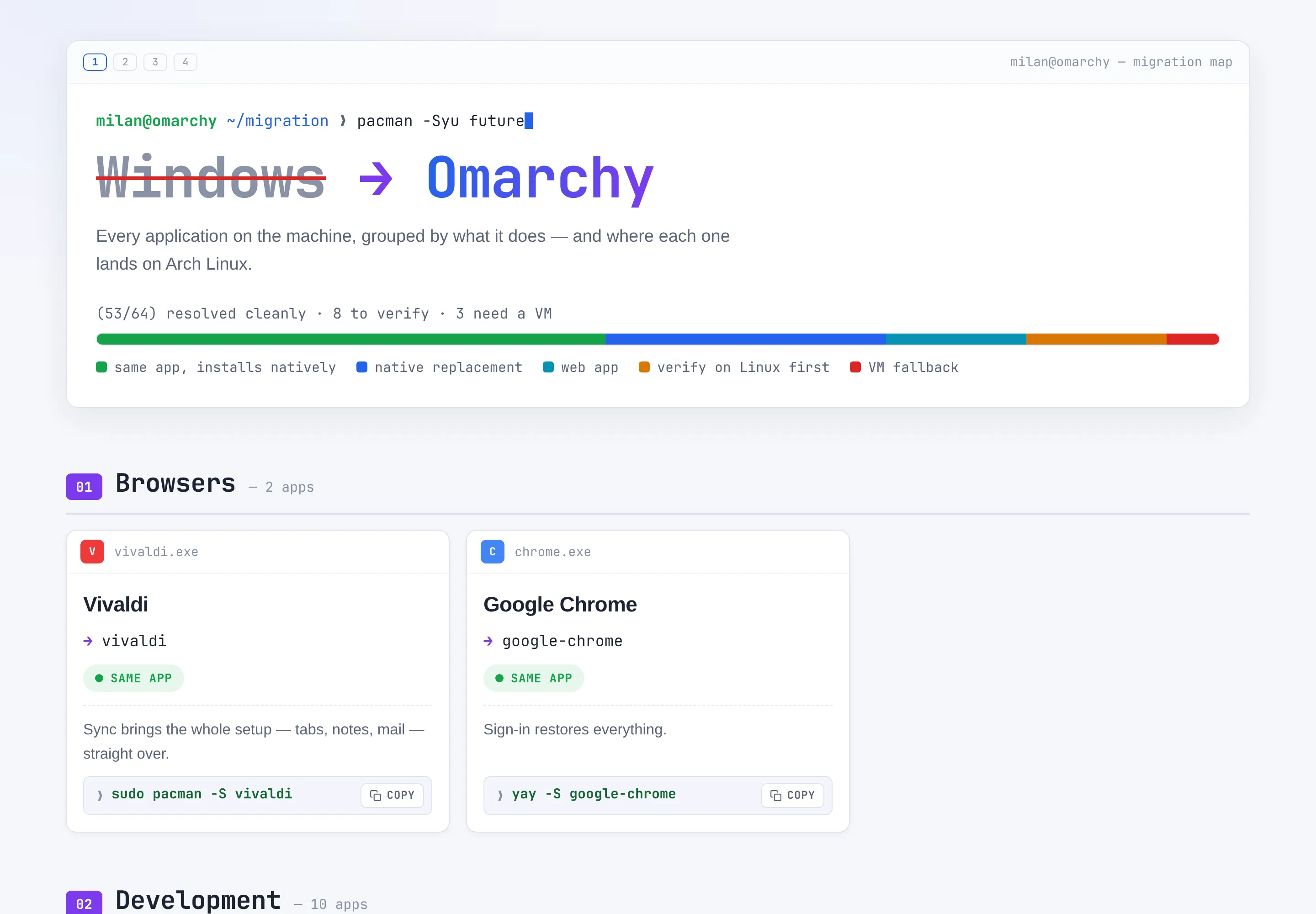
Every app on your machine, sorted by what it does, with one of five honest answers next to it:
- Same app — the identical application has a native Linux build
- Native replacement — a Linux-native equivalent, or something Omarchy ships
- Web app — the browser version fully covers it
- Verify first — a Linux path exists but must be tested
- VM fallback — no Linux path; needs a Windows VM
The numbers from my machine:
| Apps inventoried | 64 |
| Resolve cleanly (same app, replacement, web) | 53 |
| Verify on a live Omarchy session first | 8 |
| Need a Windows VM | 3 |
Here are the steps to replicate that with the help of AI.
Step 1: Inventory everything
No single source knows all your apps. The registry misses Store apps, winget misses portable apps, and nothing catches the tool you pinned to the taskbar in 2021. Pull from six sources and let the AI merge them.
Save this as inventory.ps1, then run powershell -ExecutionPolicy Bypass -File inventory.ps1. It collects everything into one folder and zips it.
# inventory.ps1 — collects a complete app inventory from 6 sources$out = "C:\Temp\app-inventory"New-Item -ItemType Directory -Path $out -Force | Out-Null
# 1. Traditionally installed programs (registry: 64-bit, 32-bit, per-user)Get-ItemProperty `  "HKLM:\Software\Microsoft\Windows\CurrentVersion\Uninstall\*",  "HKLM:\Software\WOW6432Node\Microsoft\Windows\CurrentVersion\Uninstall\*",  "HKCU:\Software\Microsoft\Windows\CurrentVersion\Uninstall\*" -ErrorAction SilentlyContinue |  Where-Object DisplayName |  Select-Object DisplayName, DisplayVersion, Publisher |  Sort-Object DisplayName -Unique |  Export-Csv "$out\installed-programs.csv" -NoTypeInformation -Encoding UTF8
# 2. Everything winget knows (catches what the registry misses, and vice versa)winget list > "$out\winget-list.txt"
# 3. Microsoft Store / UWP appsGet-AppxPackage | Where-Object { -not $_.IsFramework } |  Select-Object Name, Version | Sort-Object Name |  Export-Csv "$out\store-apps.csv" -NoTypeInformation -Encoding UTF8
# 4. Startup items (reveals background tools you rely on but forgot)Get-CimInstance Win32_StartupCommand |  Select-Object Name, Command, Location |  Export-Csv "$out\startup-items.csv" -NoTypeInformation -Encoding UTF8
# 5. Start menu shortcuts (catches portable apps pinned manually)Get-ChildItem `  "$env:ProgramData\Microsoft\Windows\Start Menu\Programs",  "$env:APPDATA\Microsoft\Windows\Start Menu\Programs" `  -Recurse -Filter *.lnk -ErrorAction SilentlyContinue |  Select-Object -ExpandProperty BaseName | Sort-Object -Unique |  Out-File "$out\startmenu-apps.txt" -Encoding UTF8
# 6. Taskbar pins (your actual daily drivers)Get-ChildItem "$env:APPDATA\Microsoft\Internet Explorer\Quick Launch\User Pinned\TaskBar" `  -Filter *.lnk -ErrorAction SilentlyContinue |  Select-Object -ExpandProperty BaseName |  Out-File "$out\taskbar-pins.txt" -Encoding UTF8
# Zip it for easy upload to your AICompress-Archive -Path "$out\*" -DestinationPath "C:\Temp\app-inventory.zip" -ForceWrite-Host "`nDone. Upload C:\Temp\app-inventory.zip (or the 6 files in $out) to your AI." -ForegroundColor GreenStep 2: Turn the inventory into a map
Upload the six files (or the zip) to your AI assistant and drop the following prompt.
I'm migrating from Windows to Omarchy (Arch Linux + Hyprland, Wayland-only, pacman + yay available). Attached are 6 exports of everything on my machine (registry programs, winget list, Store apps, startup items, Start menu, taskbar pins).
Do all of the following without asking me questions, making reasonable assumptions where needed:
1. Merge and deduplicate into one list of real applications. Silently drop Windows components, drivers, runtimes and OEM bloat, but include a short appendix listing what you dropped.2. Classify every app with exactly one status: same app (native Linux version — exact pacman/AUR package), native replacement (name it; if Omarchy covers it out of the box — launcher, screenshots, clipboard, terminal, tiling — say "built into Omarchy"), web app, verify first (must be tested pre-wipe — say what to test, and flag Wayland-specific risks like screen sharing or global hotkeys), or VM fallback (Windows-only). Search the web to verify anything you're unsure about — especially niche, regional, or hardware-tied software — and confirm AUR package names exist.3. Group by purpose, isolating anything touching government portals, banking, e-signatures, tax or fiscal hardware into a clearly-marked ⚠ critical section at the end.4. Deliver four files: (a) a markdown checklist with all apps, statuses, notes, and install commands, plus summary counts; (b) a self-contained single-file interactive HTML presentation — light theme, large projector-friendly fonts, category sections, status badges, cards with notes and install commands visible by default (no click-to-expand), a copy-to-clipboard button next to every command, a status-share progress bar up top, and a generated "day one" section at the bottom with one pacman -S line and one yay -S line covering every package, generated from one editable JS data array, fully offline with no CDN; (c) a two-line install script: one pacman -S for repo packages, one yay -S for AUR packages; (d) a ~/.config/hypr/ autostart snippet (exec-once lines) recreating my Windows startup items that still make sense on Linux.5. End with a pre-wipe checklist: what to test on a live Omarchy session, what to back up (including wsl --export for WSL distros), and whether I need a Windows VM (KVM/QEMU + virt-manager, with USB passthrough if smart cards or fiscal devices are involved).
Review the output, request tweaks, done.
Step 3: Making the jump
With the map in hand, you know what is waiting for you on the other side. The last step is getting there, and there is more than one way to do it. Here are the three I would consider, starting with the one I recommend.
1. A new laptop, in parallel (my recommendation). If you are due for new hardware anyway, this is the way to go, and it is exactly how I did it. Install Omarchy on the new machine, install the apps from your map, and keep the old Windows laptop on the desk next to it. Move one workflow at a time, and whenever something is missing, the old machine is right there. There is no deadline and no pressure. You will know you are done when you notice you haven’t opened the Windows laptop in a week. For me, that happened a lot faster than I expected.
2. Dual boot, side by side. No new laptop? Keep Windows and Omarchy on the same machine and pick which one to start when you turn it on. The simplest and safest setup is Omarchy on its own drive, so the two systems never share a disk. The Omarchy manual covers the options. Start every day in Omarchy and reboot into Windows only for the apps marked “verify first” or “VM fallback”, until you have a Linux answer for them. If your Windows drive uses BitLocker, write down the recovery key before you touch anything, because changes to the boot setup can trigger a recovery prompt.
3. Get your feet wet with WSL first. If Linux still feels scary, don’t jump yet. Install Ubuntu in WSL on your current Windows machine and move your development work there: terminal, git, editors, runtimes and build tools. You learn the shell, the package manager and the Linux way of doing things while everything else stays familiar. Once that feels natural, make the full jump to Omarchy with one of the options above. Keep in mind that WSL only gives you the Linux command line, not the Omarchy desktop, which needs a real install, so treat it as training wheels rather than a preview.
A safety net for the Windows-only apps. Whichever path you take, a few apps may never make it across. For those, Omarchy has a Windows VM built in. Run omarchy windows vm install (or pick Windows under Install in the Omarchy menu), choose how much RAM, CPU and disk to give it, and Omarchy downloads and installs Windows 11 for you. After that, Windows shows up in the app launcher and opens in its own window, with the clipboard, sound and a shared ~/Windows folder for moving files between the two systems. Close the window and the VM shuts down. It won’t make Windows apps feel native, but for the one app you need once a month, you never have to reboot into Windows again.
Whichever path you pick, go through this list before you finally wipe Windows:
- Boot the Omarchy ISO on real hardware and test the “verify first” list: Wi-Fi, printer/scanner, smart-card readers, USB dongles, external monitors. Hyprland + your GPU is part of what you’re testing.
- Sign into your critical portals (bank, government, tax) if you use e-signature software. This is the #1 migration killer and it’s country-specific — smart-card middleware usually needs
pcsclite+ccidand the vendor’s Linux client. Test a real signature, not just a login. - Wayland gotchas to test, not assume: screen sharing in your meeting apps, any remote-control/support tools, global push-to-talk hotkeys, and apps that misbehave without XWayland.
- Back up: browser profiles (or confirm sync), SSH keys and dotfiles, WSL homes (
wsl --export <distro> file.tar), license keys, and anything inDocuments/Desktopnot in cloud sync. - If anything landed in “VM fallback”, set up the Omarchy Windows VM and test those apps in it before wiping — not after, when you suddenly need to file a tax declaration. The built-in VM doesn’t pass USB devices through, so if an app needs a smart-card reader or a fiscal device, build a VM with
virt-manager(sudo pacman -S virt-manager qemu-full) and USB passthrough instead. - Recreate your autostart in Hyprland’s config (
exec-oncelines) so day one feels like home, and keep the inventory zip — six months in, “what was that tool I used for X?” has an answer.
Welcome to the tiling side. 🐧